Publishing or Recalling Inventory from the Inventory Details Tab
Use these steps to publish or recall an inventory item from the Inventory Details tab in the Analysis Workbench.
-
Open the Analysis Workbench for the desired project. (For instructions, see Opening the Analysis Workbench.)
-
Select the inventory item from the Inventory Items pane so that the item’s details are displayed in the Inventory Details pane.
-
Do one of the following:
-
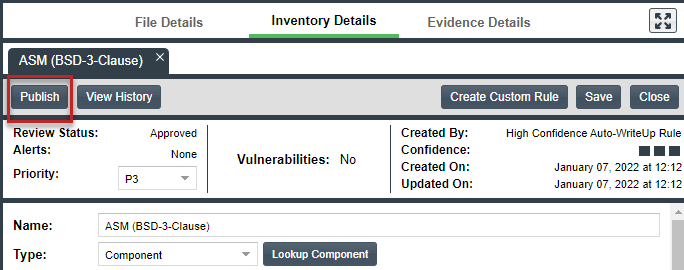
Publish the inventory item—For the unpublished inventory item currently in focus on the Inventory Details tab in the Analysis Workbench, click the Publish button.
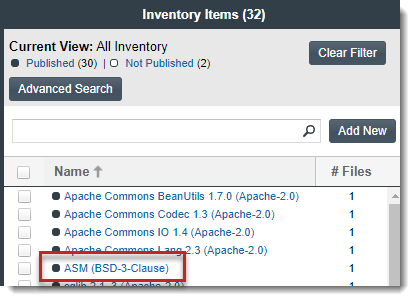
The newly published item now appears in the Inventory Items list with a filled box icon before its name (and is now also visible on the Project Inventory tab).
Once published, the inventory item is automatically reviewed by the policy profile associated with the project. For more information, see Automatic Review of Inventory at Publication in the Analysis Workbench.
-
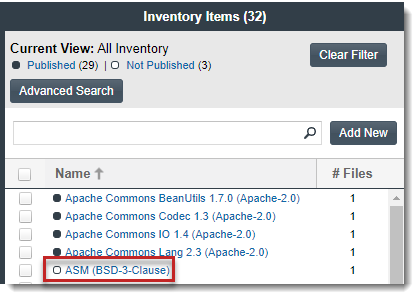
Recall the inventory item—For the published inventory item currently in focus, click the Recall button. The item now appears in the Inventory Items list with a clear-box icon before its name (and is no longer visible in Project Inventory).
The review status of the inventory item before the recall is retained until item is re-published (and the latest review policy is applied).
-